
When you need help, LyteHosting makes it fast and simple to contact us. Whether you're experiencing a technical issue, billing problem, or general enquiry, our support ticket system ensures your request reaches the right department without delay.
This guide walks you through the exact steps to create a support ticket on LyteHosting.
STEP 1: Log in to LyteHosting Client Area. Once logged in, you'll be directed to your Client Dashboard. You can manage your services, view invoices, and access support features from there.
STEP 2: Open a New Support Ticket
To create a support ticket:
- Click on the “Send Ticket” tab from the dashboard or main menu.
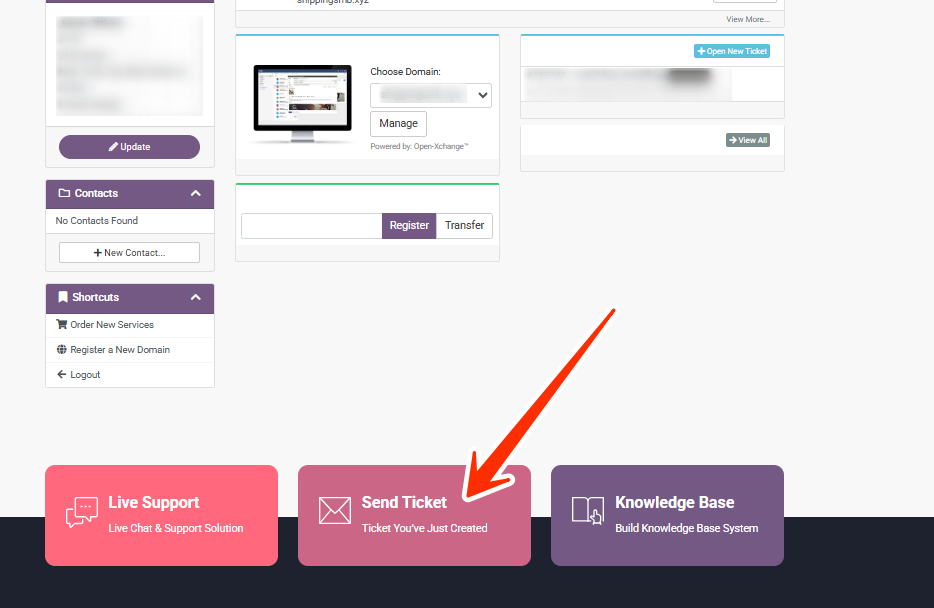
- Choose the appropriate department for your request.
Available Departments:
- Technical Support: For server issues, cPanel problems, website downtime, or general tech help.
- Sales Department: For service enquiries, upgrades, or custom hosting plans.
- Billing Support: For invoice issues, failed payments, or account credit.
- Abuse Department: For reporting suspicious activity, abuse, or policy violations.
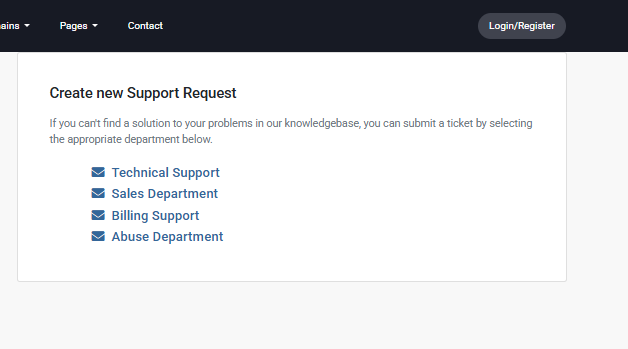
STEP 3: Fill Out the Support Ticket Form
Once you've chosen the department, the ticket form will appear. Here’s how to complete it:
- Subject: Enter a brief title.
- Priority: Select the urgency—Low, Medium, or High.
- Message: Clearly describe your issue or enquiry in detail.
- Attachments (optional): Upload relevant files such as:
- Screenshots
- Invoice copies
- Error messages
You can upload multiple attachments to help our team understand your concern better.
Once everything is filled out, click “Submit” to send your ticket to the LyteHosting support team.
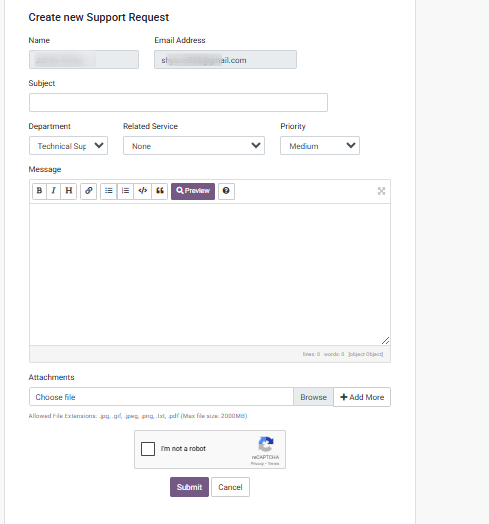
STEP 4: Track Your Ticket Status
To monitor your ticket and responses:
- Click on the “Support” tab, and select “Tickets”.
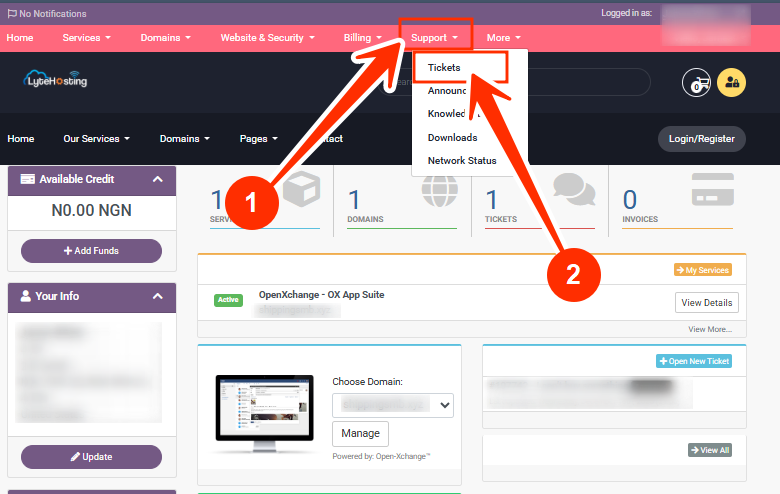
You’ll see:
- A list of all submitted tickets
- Departments they were sent to
- Current status: Open, Answered, or Closed
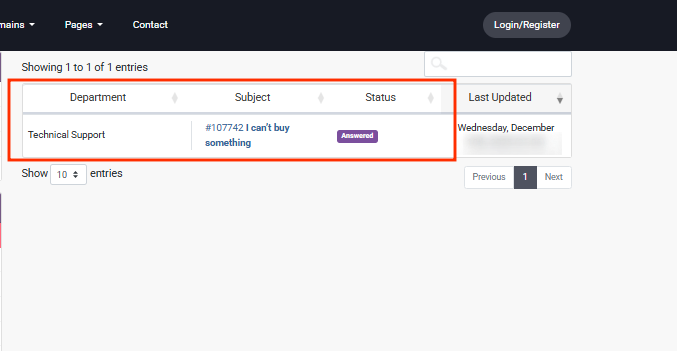
This allows you to follow up on your enquiries in real time and stay informed.
Tip: Always provide as much detail and supporting documentation as possible to speed up the resolution process.